
How to Download Your LinkedIn Connections
Download your LinkedIn connections using a desktop or laptop: request your larger data archive in Settings & Privacy, wait for the email link, then extract and securely save Connections.csv. Follow Michael Hammond’s eight-step illustrated guide.
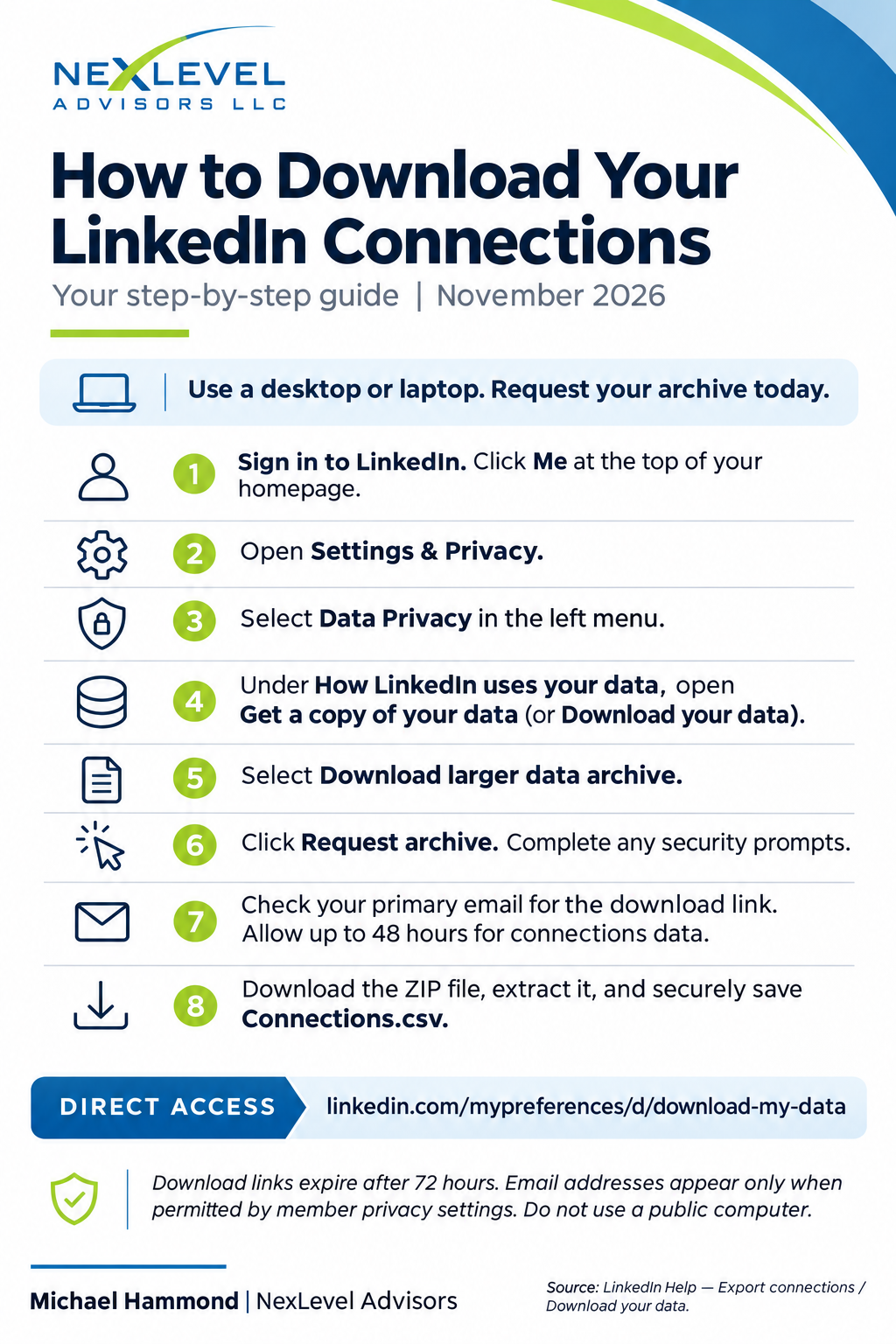
To download your LinkedIn connections, use a desktop or laptop and open Settings & Privacy → Data Privacy → Get a copy of your data. Select Download larger data archive, click Request archive, and follow the email link when your download is ready. Extract the ZIP file and securely save Connections.csv.
This November 2026 step-by-step guide is provided by Michael Hammond of NexLevel Advisors. The original illustrated guide appears above, with the same instructions in text below.
How do you download your LinkedIn connections?
Step 1: Sign in to LinkedIn
Use a desktop or laptop. Sign in to LinkedIn and click Me at the top of your homepage.
Step 2: Open Settings & Privacy
Open Settings & Privacy from the Me menu.
Step 3: Select Data Privacy
Select Data Privacy in the left menu.
Step 4: Open the data download settings
Under How LinkedIn uses your data, open Get a copy of your data (or Download your data).
Step 5: Select the larger archive
Select Download larger data archive.
Step 6: Request your archive
Click Request archive and complete any security prompts.
Step 7: Check your email
Check your primary email for the download link. Allow up to 48 hours for connections data.
Step 8: Save Connections.csv securely
Download the ZIP file, extract it, and securely save Connections.csv.
Where can you access LinkedIn’s data download settings directly?
Open LinkedIn’s data download settings at https://www.linkedin.com/mypreferences/d/download-my-data and sign in to your account if prompted.
Frequently asked questions
How long does a LinkedIn connections export take?
Allow up to 48 hours for your connections data to become available. Check your primary email for LinkedIn’s download notification.
How long is the download link available?
Download links expire after 72 hours. Download and securely save the archive promptly after receiving the email.
Does the export include every connection’s email address?
No. Email addresses appear only when permitted by member privacy settings. A missing email address does not mean the connection is missing from your network.
How should you protect your downloaded connections?
Do not use a public computer. Keep the ZIP file and Connections.csv in secure storage and respect member privacy settings. A LinkedIn connection does not automatically give permission to add someone to a marketing mailing list.
Sources and related reading
Source: LinkedIn Help — Export connections / Download your data. Visit https://www.linkedin.com/help/linkedin and search those titles for current platform instructions. Menu labels and available export fields may change.
For context on reported export changes, read: https://nexleveladvisors.com/resources/linkedin-connections-data-export-december-2026
Written by Michael Hammond, founder of NexLevel Advisors and host of the Fintech Hunting Podcast.